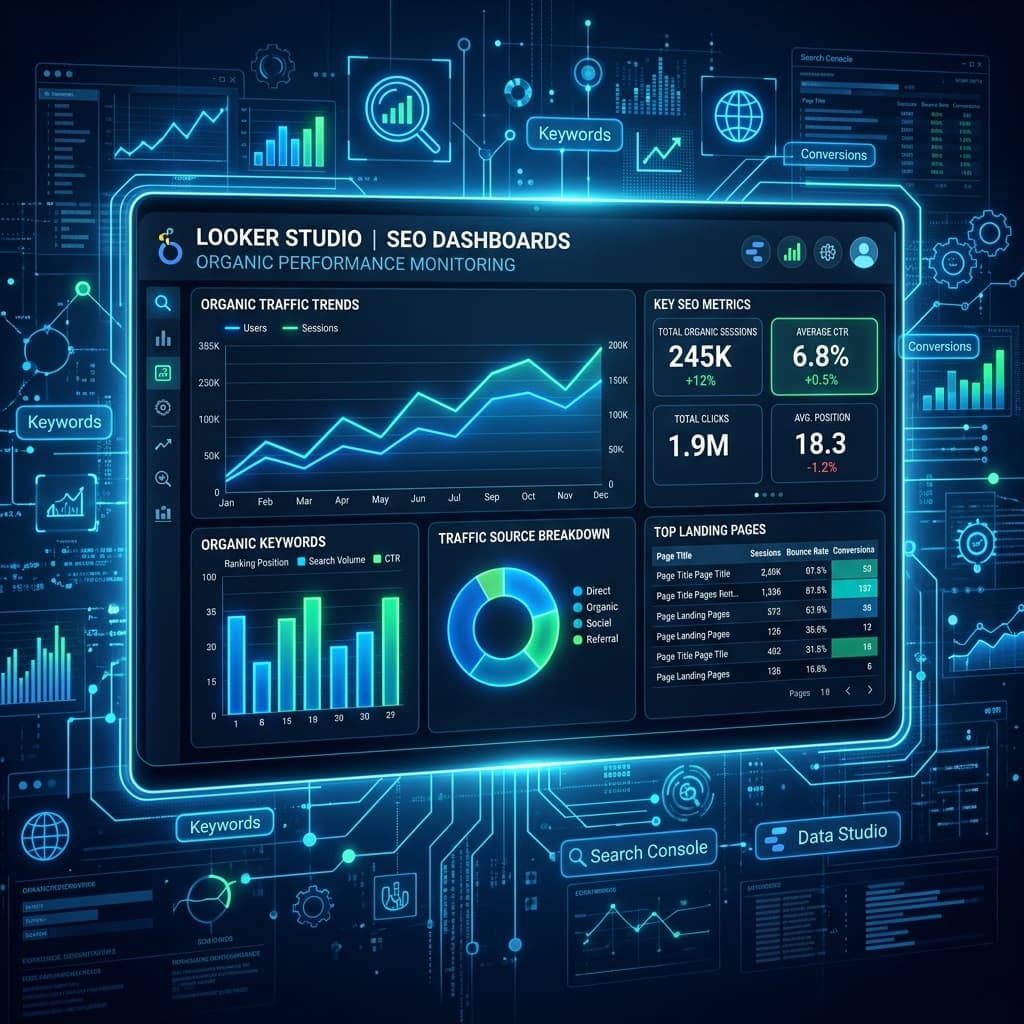
Looker Studio SEO Dashboards: How to Build Actionable Organic Reports
Learn how to blend Google Search Console and GA4 data in Looker Studio to create interactive dashboard reports for clients and executives.
Key Takeaways
- Looker Studio connects directly to GSC and GA4 data sources.
- Data blending allows matching GSC click metrics with GA4 conversion events on a single page URL.
- Custom regex filters help build specific, product-focused dashboards.
Reporting is only valuable if it drives action. Static spreadsheets are boring. Interactive dashboards tell stories.
1. Blending Data in Looker Studio
To combine Google Search Console (clicks/impressions) and GA4 (conversions/engagement), execute a Data Blend:
- →Join Key: Use landing page URLs.
- →Left Table: GSC URL Impression data.
- →Right Table: GA4 Landing Page event metrics.
2. Key Dashboards to Build
- Executive Summary: High-level organic search conversions, sessions, and visibility indicators.
- Content Hub Auditor: Deep dive into directory-level traffic shifts and engagement trends.
- Keyword Opportunity Map: Tracking keywords ranked in positions 4-10.
3. Conclusion
Automating your analytics dashboards saves time and provides clients with transparent performance data.Technical Implementation: JSON-LD Schema
Implement this JSON-LD schema on your page:
<script type="application/ld+json">
{
  "@context": "https://schema.org",
  "@type": "TechArticle",
  "headline": "Looker Studio SEO Dashboards: How to Build Actionable Organic Reports",
  "description": "Learn how to blend Google Search Console and GA4 data in Looker Studio to create interactive dashboard reports for clients and executives.",
  "inLanguage": "en-US",
  "mainEntityOfPage": {
    "@type": "WebPage",
    "@id": "https://www.seotech.app/blog/looker-studio-seo-dashboards-guide"
  },
  "image": {
    "@type": "ImageObject",
    "url": "https://www.seotech.app/images/blog/looker-studio-seo-dashboards-guide.png",
    "width": 1200,
    "height": 1200
  },
  "datePublished": "2026-07-05T10:00:00Z",
  "dateModified": "2026-07-05T10:00:00Z",
  "author": {
    "@type": "Person",
    "name": "TechSEO Editorial Team",
    "url": "https://www.seotech.app/authors/techseo-editorial-team"
  },
  "publisher": {
    "@type": "Organization",
    "name": "TechSEO Insights",
    "url": "https://www.seotech.app",
    "logo": {
      "@type": "ImageObject",
      "url": "https://www.seotech.app/images/logos/logo.svg"
    }
  }
}
</script>
Official References
Frequently Asked Questions
How do I link Google Search Console to Looker Studio?
Use the built-in Search Console connector, select your property, choose between Site Impression or URL Impression tables, and import the datasource.

Founder & Editor, TechSEO Insights
The TechSEO Editorial Team writes practical SEO, AI tools, and web development guides based on hands-on research, testing, and real website optimization work.
Subscribe to TechSEO Insights
Get the latest guides on technical SEO, Core Web Vitals, and content marketing delivered straight to your inbox.
Privacy Note: By subscribing, you agree to receive our newsletter (Lawful Basis: Consent). We retain your email address until you choose to unsubscribe. For more details, view our Privacy Policy.