Website Analytics Audit Checklist: 25 Critical Checks Every Marketer Should Perform in 2026
Ensure your marketing data is 100% accurate. A comprehensive 25-point website analytics audit checklist covering GA4, UTMs, conversions, attribution, and consent.
Key Takeaways
- An analytics audit is essential to prevent data-driven decisions from being based on corrupt, duplicate, or missing data.
- Extend GA4 data retention from 2 months to 14 months to prevent losing historical user-level reporting and custom explorations.
- Implement a rigid UTM governance policy to maintain clean traffic acquisition channels and avoid self-referral attribution loops.
- Validate Consent Mode v2 configurations to comply with international privacy regulations while retaining conversion modeling.
In the modern digital landscape, data-driven decision-making is only as good as the underlying data itself. In 2026, web analytics data quality faces unprecedented challenges: the final deprecation of third-party cookies, strict regulatory enforcements like GDPR and CPRA, the rise of AI-driven search engines altering organic referrers, and complex multi-channel user journeys.
If your analytics configuration is broken, you are making crucial marketing, SEO, and budget allocation decisions based on skewed reports. Performing a regular, structured website analytics audit is the only way to prevent tracking errors from draining your ad budget and misguiding your content strategies.
This comprehensive guide delivers an expert-level, 25-point analytics audit checklist designed for marketers, developers, and SEO professionals who need to verify that their tracking architecture is accurate, compliant, and actionable.
1. What Is a Website Analytics Audit?
A website analytics audit is a systematic evaluation of your digital tracking setup, data processing configurations, and reporting outputs. It goes beyond checking whether a tracking script is active on your homepage. A complete audit reviews:
- →Tag Infrastructure: Confirming that tracking scripts are deployed correctly, execute efficiently, and fire without duplication across all pages.
- →Data Accuracy: Identifying tracking gaps, filtering internal developer traffic, and scrubbing bot spam.
- →Attribution & UTMs: Ensuring that incoming traffic is categorized into correct acquisition channels (e.g., Organic Search, Paid CPC, Email) and UTM tags are correctly configured.
- →Conversion Tracking: Verifying that key business conversions (form submissions, checkouts, lead generations) are tracked accurately without under-reporting or double-counting.
- →Privacy & Compliance: Validating that consent flags align with regional regulations (such as GDPR, CPRA, and Google's Consent Mode v2) and that no Personally Identifiable Information (PII) is leaked.
A Real-World Failure Scenario
Consider a B2B SaaS organization running a high-spend LinkedIn advertising campaign. The marketing team registers 500 sign-ups from LinkedIn in their CRM, but GA4 reports show only 50 conversions from paid social, with the remaining 450 attributed to "Direct" or "Referral."Upon auditing, the technical team discovers that their landing page platform (hosted on a separate subdomain) did not have cross-domain tracking active. When a user clicked from the landing page to the main app, their session was severed and restarted as "Direct" traffic. Without a technical audit, the company would have concluded that their paid campaigns were failing, potentially shutting down their highest-converting channel.
2. Why Analytics Audits Matter in 2026
The analytics ecosystem has shifted from passive page tracking to complex, real-time data orchestration. Relying on default, out-of-the-box settings is no longer sufficient.
The Death of Third-Party Cookies
In 2026, the complete transition to a first-party data framework means that tracking algorithms must rely on cookies written directly in the first-party domain space, server-side Tag Management, and conversion modeling. If your tag container is not configured to support first-party cookies, up to 30% of your user paths will be broken or lost to cookie deletion policies (such as Apple's Safari ITP, which restricts client-side cookies to a 1-day or 7-day lifespan).Machine Learning and Smart Bidding
Modern ad platforms (Google Ads, Meta Ads) rely heavily on smart bidding algorithms. These algorithms require high-quality conversion signals to train their models. If your conversion pixel fires twice on checkout pages or tracks minor scroll events as main conversions, you are feeding corrupt data into the bidding engine. The algorithm will optimize for low-value users, driving up your Customer Acquisition Cost (CAC).The Rise of Privacy Constraints
With privacy legislations enforcing strict penalties for non-compliance, companies must utilize Consent Mode v2. Implementing Consent Mode incorrectly can lead to immediate drops in reported conversions or, worse, account suspension due to privacy violations. Learn how to align compliance with data modeling in our GA4 Consent Mode v2 guide.| Tracking Discrepancy Type | Average Reporting Skew | Common Business Impact |
|---|---|---|
| Missing Cross-Domain Linker | 15% - 25% drop in campaign attribution | Overstates "Direct" and "Referral" channels, leading to cuts in profitable ad spend. |
| Double-Tracking Container Scripts | 50% - 100% inflation of pageviews | Skews bounce rates to near-zero, inflates session count, and corrupts engagement metrics. |
| Missing UTM parameters on Email/Social | 10% - 15% drop in marketing reporting | Emails appear as direct traffic, making it impossible to calculate newsletter ROI. |
| PII in Query Parameters | Violation of platform terms | Poses severe compliance risks under GDPR and can result in permanent deletion of analytics properties. |
3. The Complete 25-Point Analytics Audit Checklist
Use this structured checklist to execute your audit. We have broken it down into ten core areas of measurement governance. All checks are formatted cleanly with top-level block elements to ensure perfect MDX compatibility.
Check 1: Base Tag Placement and Validation (GTM / gtag.js)
- →Why it matters: If your base tracking container is missing from key pages, or loads too late in the page lifecycle, you will fail to capture early user interactions, leading to under-reported pageviews.
- →How to audit: Use a website crawler like Screaming Frog SEO Spider to crawl the entire site. Use custom search configurations to check for the presence of your specific Measurement ID (e.g.,
G-orGTM-). - →Actionable recommendation: Ensure the GTM script container is placed at the absolute top of the
<head>element, immediately after any security headers and critical CSS. Do not load GTM using custom delays.
Check 2: Double Tracking and Duplicate Hits
- →Why it matters: Firing the GA4 script twice on a single page inflates pageviews, lowers bounce rate to near-zero, and skews session duration.
- →How to audit: Launch Google Tag Assistant or Chrome DevTools Network Tab, filter by
/collect?v=2and check if there are multiple requests targeting the same Measurement ID (tid=G-XXXXXXXXXX) on a single pageview. - →Actionable recommendation: Consolidate tracking tags. Ensure the tag is either loaded natively in the CMS or exclusively through Google Tag Manager, never both.
Check 3: Site Search Configuration & Query Parameters
- →Why it matters: Capturing internal search queries reveals direct user intent, informing content refresh strategies.
- →How to audit: Perform a search on your website and look at the URL. Locate the query parameter (e.g.,
?q=,?s=,?search=). Go to GA4 Admin > Data Streams > Web Stream Details > Enhanced Measurement settings and verify if that parameter is included in the site search settings. - →Actionable recommendation: If your website uses non-standard search parameters (like
?find=), add them to the query parameter input list in GA4 Enhanced Measurement.
Check 4: Cross-Domain Tracking Setup
- →Why it matters: If your checkout or booking process spans multiple domains (e.g.,
mysite.comandmybookingportal.com), lack of cross-domain tracking breaks sessions, starting a new session attributed to referral traffic from the main site. - →How to audit: Navigate from the main site to the second domain. Inspect the URL of the target domain. It must contain the
_glquery parameter (linker parameter containing timestamp, browser ID, and client hash). - →Actionable recommendation: In GA4 Admin > Data Streams > Web Stream Details > Configure Tag Settings > Configure Your Domains, add all domains involved in the customer journey to the list of domains for cross-domain measurement.
Check 5: Data Retention Settings (2 vs 14 Months)
- →Why it matters: The default GA4 configuration only retains user-level and event-level data for 2 months. After 2 months, custom explorations will fail to load historical details, making year-over-year comparisons impossible.
- →How to audit: Navigate to GA4 Admin > Data Settings > Data Retention. Check the "Event data retention" setting.
- →Actionable recommendation: Change this dropdown from "2 months" to "14 months" immediately and click Save.
Check 6: Reporting Identity Configuration
- →Why it matters: Reporting Identity dictates how GA4 stitches user sessions across devices. If set to Device-only, it ignores User ID and Google Signals data, splitting a single user's multi-device path into multiple visitors.
- →How to audit: Go to GA4 Admin > Reporting Identity. See which option is selected.
- →Actionable recommendation: Select Blended if you have implemented user IDs and Consent Mode, which allows GA4 to use machine learning to model behavior when cookies are missing.
Check 7: Google Signals Activation & Data Thresholding
- →Why it matters: While Google Signals enables cross-device tracking and demographic reporting, it can trigger "data thresholding" in your reports, hiding rows with low user counts to prevent user identity reconstruction.
- →How to audit: Look at the top of your GA4 reports. If you see a warning icon indicating "thresholding applied," Google Signals is filtering out low-volume rows.
- →Actionable recommendation: If thresholding is hiding valuable long-tail SEO keyword or landing page data, temporarily switch your Reporting Identity to Device-based when analyzing reports, then switch it back.
Check 8: Referral Exclusions & Payment Gateway Tracking
- →Why it matters: Third-party checkout platforms (e.g., Stripe, PayPal, Shopify Checkout) send users back to your site after payment. If not excluded, they are credited as the converting traffic source, erasing the actual marketing channel.
- →How to audit: In GA4 reports, check Traffic Acquisition and look for sources like
paypal.com,stripe.com, orconnect.stripe.comshowing high numbers of conversions. - →Actionable recommendation: Go to GA4 Admin > Data Streams > Web Stream Details > Configure Tag Settings > Show All > List Unwanted Referrals. Add all payment gateways and authentication domains to this exclusion list.
Check 9: Custom Conversion Mapping (Key Events)
- →Why it matters: In 2026, Google rebranded "Conversions" to "Key Events" inside GA4. Unregistered key events mean you cannot measure campaign ROI or sync marketing outcomes to Google Ads.
- →How to audit: Navigate to GA4 Admin > Events. Check if the critical events (e.g.,
generate_lead,purchase,sign_up) are toggled as "Mark as key event." - →Actionable recommendation: Only mark actual value-generating events as key events. Do not mark micro-interactions (like simple scrolls or link clicks) as key events, as this inflates conversion rates and confuses ad bidding algorithms.
Check 10: E-Commerce Purchase Funnel Configuration
- →Why it matters: Accurate e-commerce tracking requires aligning front-end dataLayer pushes with GA4’s rigid schema (
view_item,add_to_cart,begin_checkout,purchase). Missing parameters likecurrency,value, oritemswill corrupt revenue reports. - →How to audit: Open GTM Preview Mode, complete a test purchase, and inspect the API call payload. Ensure the
purchaseevent has all required items arrays and correct values. - →Actionable recommendation: Set up a schema checker or use Tag Assistant to double-check that the
valueparameter matches the sum of product prices, and that thetransaction_idmatches your database.
Check 11: Lead Form Tracking (AJAX, iFrames, and SPAs)
- →Why it matters: Standard pageview-based form tracking fails on modern single-page applications (SPAs) or interactive forms that submit without refreshing the page.
- →How to audit: Submit your forms in GTM Preview. If the form submits but no
form_submitevent is registered in the GTM debug log, your tracking is broken. - →Actionable recommendation: Ask your developers to push a custom event to the dataLayer on successful form submission:
window.dataLayer = window.dataLayer || [];
window.dataLayer.push({
  event: 'form_submission_success',
  form_id: 'contact_form_main'
});
Create a GTM Custom Event trigger that targets form_submission_success.
Check 12: Click-to-Call and Mailto Link Tracking
- →Why it matters: For service-based businesses, phone number clicks (
tel:) and email links (mailto:) represent primary lead actions. If untracked, offline conversions appear disconnected from marketing channels. - →How to audit: Use GTM Preview to click phone and email links on your contact page. Verify that specific link-click triggers capture the click URL.
- →Actionable recommendation: Create a GTM trigger: Click - Just Links, set to fire when Click URL starts with
tel:ormailto:, and map it to a custom GA4 event calledcontact_clickwith acontact_typeparameter.
Check 13: UTM Naming Convention Consistency & Casing
- →Why it matters: UTM campaign parameters are case-sensitive. If one campaign link uses
utm_source=Linkedinand another usesutm_source=linkedin, GA4 will report these as two separate sources. This splits your marketing data and breaks acquisition reports. - →How to audit: Go to GA4 > Reports > Acquisition > Traffic Acquisition. Filter by Source/Medium and look for duplicates with different casing.
- →Actionable recommendation: Enforce a strict lowercase naming policy. Use a standardized UTM builder spreadsheet for all marketing teams. You can also implement custom variables in GTM that force incoming source and medium parameters to lowercase before sending them to GA4.
Check 14: Default Channel Group Alignment
- →Why it matters: GA4 categorizes traffic into Default Channel Groups based on specific source/medium definitions. If you use non-standard mediums (e.g.,
utm_medium=paid-socialinstead ofutm_medium=cpcorutm_medium=paid), the traffic will fall into the "Unassigned" category, cluttering your acquisition reports. - →How to audit: In your Traffic Acquisition reports, filter by the "Unassigned" default channel group and look at the source/medium details.
- →Actionable recommendation: Match your UTM parameters to Google's official Default Channel Grouping rules. For example, use
utm_medium=emailfor newsletters andutm_medium=displayfor banners.
Check 15: Tracking in Newsletter and Paid Advertising Campaigns
- →Why it matters: Paid ads and recurring newsletters without UTM parameters default to
organic,referral, ordirect, which masks campaign ROI and overstates SEO search performance. - →How to audit: Open links from your marketing emails and paid ad landing pages in an incognito window. Check if correct UTM campaigns, sources, and mediums are present in the URL.
- →Actionable recommendation: Configure your Email Service Provider (ESP) to append UTM tags to all outgoing links automatically. Enable Google Ads auto-tagging (
gclid) to ensure seamless synchronization of click data.
Check 16: Attribution Model Settings
- →Why it matters: GA4 uses Data-driven attribution (DDA) by default, distributing conversion credit across multiple touchpoints. Understanding which attribution model your reporting uses prevents misinterpreting traffic value.
- →How to audit: Navigate to GA4 Admin > Attribution Settings. Verify the selected Reporting Attribution Model.
- →Actionable recommendation: Stick with Data-driven attribution for most sites, but review conversion paths in the "Advertising" workspace to analyze how early touchpoints (like informational SEO articles) drive eventual purchase conversions.
Check 17: Lookback Window Customization
- →Why it matters: The lookback window determines how far back GA4 looks to attribute a conversion to an earlier touchpoint. The default is 30 days for key events and 90 days for acquisition events.
- →How to audit: Check the settings under GA4 Admin > Attribution Settings > Lookback Window.
- →Actionable recommendation: Keep lookback windows at their maximum values (30 days for key acquisition events, 90 days for all other conversion events) to capture long research cycles, especially for B2B or high-ticket e-commerce sites.
Check 18: Enhanced Measurement Event Validation
- →Why it matters: Enhanced Measurement automatically tracks events like
scroll,click(outbound clicks),file_download,view_search_results, andvideo_start. However, if these conflict with custom tags in GTM, they can cause duplicate tracking or useless data bloat. - →How to audit: Check GA4 reports or GTM Preview to verify if events like
scrolltrigger at 90% page depth. If you need scroll tracking at 25%, 50%, and 75%, the default GA4 scroll event (which only fires at 90%) is insufficient. - →Actionable recommendation: Turn off the default
scrolltracking in Enhanced Measurement if you plan to deploy custom scroll tracking via GTM. Make sure you don't duplicate tags.
Check 19: Custom Dimension & Custom Metric Registration Limits
- →Why it matters: Sending custom parameters in event payloads (e.g.,
author_nameorproduct_category) is useless unless they are registered as custom dimensions in the GA4 admin. GA4 restricts standard accounts to 50 event-scoped custom dimensions. - →How to audit: Go to GA4 Admin > Custom Definitions > Custom Dimensions. Check how many dimensions are registered and see if any parameters sent via GTM are missing.
- →Actionable recommendation: Set up a schema registry. Regularly clean out unused custom dimensions to avoid reaching the account limits, and ensure all custom dimensions are mapped to variables in your reporting dashboards.
Check 20: Internal Traffic Filtration (Developer & Office IP Exclusion)
- →Why it matters: Internal employee traffic and developer testing skew bounce rates, inflate pageviews, and skew conversion numbers.
- →How to audit: Navigate to GA4 Admin > Data Settings > Data Filters. See if the "Internal Traffic" filter is set to "Active". Check GTM Preview to see if test events contain the
traffic_type = internalparameter. - →Actionable recommendation: Define internal IPs in Admin > Data Streams > Tag Settings > Define Internal Traffic. Set the filter to Active once verified in Testing mode.
Check 21: Search Console and Google Ads Linking
- →Why it matters: Linking GSC and Google Ads pulls ranking data and PPC spend metrics directly into GA4, enabling unified SEO-PPC keyword comparison and search visibility maps.
- →How to audit: Check GA4 Admin > Product Links. Ensure Search Console and Google Ads display active connections.
- →Actionable recommendation: Link your GSC property to GA4. To view the reports, go to GA4 Library > Collections and publish the Search Console collection. This adds the Search Console reports to the sidebar. Read about query analysis in our comprehensive Google Search Console guide.
Check 22: Looker Studio Data Blending & Field Type Health
- →Why it matters: Looker Studio reports often break when GA4 schemas change, or when data blending joins tables on incompatible keys (e.g., blending GA4 data with Search Console using query pages that have different capitalization).
- →How to audit: Check your Looker Studio reports for configuration errors (e.g., "System Error" or "No Data"). Inspect page-level blending keys to make sure URLs match exactly.
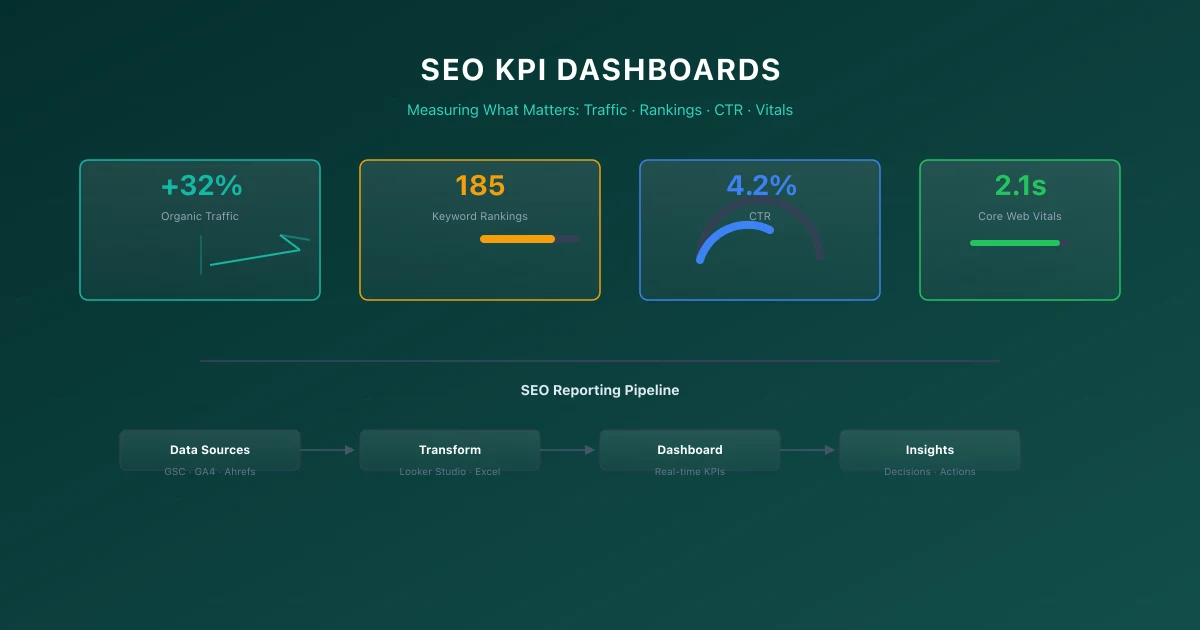
- →Actionable recommendation: Clean and normalize URL structures in both GA4 and Search Console before blending. Trim query parameters and trailing slashes to prevent data splitting. For dashboard ideas, review our guide on SEO KPI dashboards.
Check 23: PII Scrubbing and Query Parameter Exclusions
- →Why it matters: Capturing Personally Identifiable Information (PII) like email addresses, names, or phone numbers in GA4 URLs or event parameters violates Google’s terms of service and can result in the immediate deletion of your entire analytics property.
- →How to audit: Filter your GA4 Pages and Screens report by search terms like
@,email=,first_name=, ortel=. - →Actionable recommendation: Implement query parameter redacting scripts inside GTM to strip emails and identifiers from URLs before the data is sent to GA4.
Check 24: Bot Traffic and Spam Referral Filtration
- →Why it matters: Although GA4 automatically filters known bots, sophisticated scrapers and spam referrals bypass default filters, inflating sessions and skewing metrics.
- →How to audit: Monitor traffic anomalies. Look for spikes in direct traffic with 0-second engagement times or strange referral domains (e.g.,
traffic-generator.xyz). - →Actionable recommendation: Block spam referrers using GTM custom templates or server-side firewall rules (like Cloudflare WAF) to stop bad traffic before the analytics script ever loads.
Check 25: Consent Mode v2 Configuration
- →Why it matters: Consent Mode v2 ensures tracking compliance under EU/UK and CPRA rules. Without it, Google Ads remarketing is disabled, and GA4 models will lack baseline pings to model missing user paths.
- →How to audit: Use GTM Preview Mode or check outgoing network payloads for GCS strings (e.g.,
G100,G111). - →Actionable recommendation: Deploy a Google-Certified Consent Management Platform (CMP). Set default consent to
deniedfor EEA regions, and update states instantly when user choices are registered.
4. Common Analytics Mistakes
In our experience auditing enterprise accounts, several common mistakes recur across industries:
1. Hardcoding UTM Tags on Internal Links
This is the single most destructive analytics error. Putting UTM tags (likeutm_source=homepage_banner) on internal site links overwrites the user's original traffic source (e.g., Organic Search). If a user arrives via SEO, clicks a banner with UTMs, and then converts, the conversion is credited to the internal banner instead of organic search.
- →The Fix: Use custom event tracking (e.g., a GTM click trigger tracking the banner click as an event) instead of UTMs for internal links.
2. Leaving GTM Debug/Test Containers Active in Production
Leaving test variables or draft tag configurations active in live environments can slow down page load times and send junk test data to your production reporting dashboards.- →The Fix: Always test container changes in a staging environment. Ensure debug filters are paused before publishing a container version.
3. Relying on Single-Point Attribution
Relying solely on "Last Click" attribution ignores the top-of-funnel content marketing and SEO strategies that originally brought the user to your site. This can lead to under-investing in SEO and over-investing in retargeting.- →The Fix: Analyze multi-touch attribution paths in GA4's Advertising Workspace to see the complete journey.
5. Recommended Analytics Tools
Executing a website analytics audit requires a set of specialized tools to inspect network payloads, crawl scripts, and test triggers.
| Tool Name | Tool Purpose | Best Used For | Cost |
|---|---|---|---|
| Google Tag Assistant | Debugging tag execution | Verifying real-time triggers, consent states, and dataLayer pushes in GTM. | Free |
| Scream Frog SEO Spider | Website crawling | Custom search extraction to verify tracking tag presence across large websites. | Free / Paid |
| Chrome DevTools (Network) | Inspecting network requests | Analyzing raw GCS/GCD consent strings and checking outbound /collect payloads. | Free |
| Plausible / Fathom | Privacy-first analytics | Lightweight, GDPR-compliant analytics dashboard for tracking baseline metrics without cookie consent requirements. | Paid |
| Looker Studio | Data visualization | Building automated KPI dashboards and reporting visualizations. | Free |
6. Website Analytics Audit Template
Use the following template worksheet to document the status of your website analytics audit.
| Section | Check ID | Audit Item | Status (Pass/Fail/NA) | Priority | Audit Notes & Corrective Actions |
|---|---|---|---|---|---|
| Setup | Check 1 | Base Tag Presence | High | Ensure tag is placed high in head across all pages. | |
| Setup | Check 2 | Duplicate Container Instances | High | Check for overlapping GTM/gtag deployments. | |
| Setup | Check 3 | Site Search Parameters | Medium | Map CMS search query keys to Enhanced Measurement. | |
| Setup | Check 4 | Cross-Domain Tracking | High | Add linker domain parameters in the tag configuration. | |
| Config | Check 5 | Data Retention Period | High | Switch data retention to 14 months. | |
| Config | Check 6 | Reporting Identity | Medium | Set reporting identity to "Blended". | |
| Config | Check 7 | Google Signals & Thresholding | Medium | Switch to "Device-based" identity if data is hidden. | |
| Config | Check 8 | Referral Exclusions | High | Add payment gateways to the exclusion list. | |
| Conversions | Check 9 | Key Events Configuration | High | Toggle only core actions as key events. | |
| Conversions | Check 10 | E-commerce Funnel Schema | High | Ensure required items and values arrays map properly. | |
| Conversions | Check 11 | AJAX / SPA Form Tracking | High | Configure custom dataLayer events for SPAs. | |
| Conversions | Check 12 | tel: & mailto: Clicks | Low | Set up click-to-call link tracking in GTM. | |
| UTMs | Check 13 | Lowercase Parameter Casing | Medium | Standardize and enforce lowercase UTM formatting. | |
| UTMs | Check 14 | Channel Group Mapping | Medium | Match UTM mediums to GA4 guidelines. | |
| UTMs | Check 15 | Campaign Links Tracked | High | Audit newsletter and paid ad tracking links. | |
| Attribution | Check 16 | Attribution Settings | Medium | Keep set to Data-driven attribution. | |
| Attribution | Check 17 | Lookback Window Periods | Medium | Match lookback windows to user buying cycles. | |
| Events | Check 18 | Enhanced Measurement Settings | Medium | Turn off default scroll tracking if using custom GTM. | |
| Events | Check 19 | Custom Dimension Mappings | High | Register parameters in GA4 Custom Definitions. | |
| Accuracy | Check 20 | Internal IP Traffic Filters | High | Set filter status to Active. | |
| Accuracy | Check 21 | GSC & Google Ads Connections | High | Publish GSC collection in the GA4 library. | |
| Dashboards | Check 22 | Blending Keys & Metrics | Medium | Clean and normalize URL paths in data blends. | |
| Data Quality | Check 23 | PII in URLs & Scraping | High | Scrub emails from parameters in GTM. | |
| Data Quality | Check 24 | Spam Referrals & Bot Spikes | Medium | Block spam referrers using Cloudflare or GTM filters. | |
| Privacy | Check 25 | Consent Mode v2 Signals | High | Map all four required consent parameters. |
7. Official References
- →Google Analytics Help Center
- →Google Tag Platform Developer Documentation
- →Google Search Console Help
- →Google Trends Portal
8. Conclusion
Accurate website analytics is the foundation of digital marketing success. Without reliable tracking, you cannot calculate SEO ROI, optimize paid campaigns, or understand user behavior.
Use this 25-point website analytics audit checklist to identify and fix tracking issues. Correcting these errors early preserves analytical accuracy, respects user choices, and ensures your campaigns are driven by high-quality data.
For deeper insights into digital marketing measurement, read our conversion tracking setup guide and our walkthrough on configuring SEO KPI dashboards to build clear, reliable reports for your business.
Frequently Asked Questions
What is a website analytics audit?
A website analytics audit is a comprehensive evaluation of your analytics platform's tracking setup, data collection configurations, platform integration health, and data reporting outputs to ensure data is gathered accurately, cleanly, and in compliance with global privacy regulations.
How often should you perform a website analytics audit?
For most mid-sized and enterprise websites, a comprehensive website analytics audit should be performed at least once a year. However, mini-audits should be conducted quarterly, or immediately following any CMS updates, major website migrations, or tag infrastructure overhauls.
Why is the default data retention in GA4 set to 2 months?
Google Analytics 4 defaults to a 2-month retention period for user-level and event-level data as a privacy-safe baseline. To perform long-term cohort analyses and custom user journey explorations spanning up to a year, you must manually change this setting to 14 months in the GA4 admin.
How do UTM parameters impact website analytics?
UTM parameters allow marketers to track the performance of specific marketing campaigns across search, social, newsletter, and paid channels. Inconsistent UTM naming (such as mixing casing or syntax) breaks default channel grouping and compromises reporting accuracy.

Founder & Editor, TechSEO Insights
Mehul Makavana writes practical SEO, AI tools, and web development guides based on hands-on research, testing, and real website optimization work.
Subscribe to TechSEO Insights
Get the latest guides on technical SEO, Core Web Vitals, and content marketing delivered straight to your inbox.
Privacy Note: By subscribing, you agree to receive our newsletter (Lawful Basis: Consent). We retain your email address until you choose to unsubscribe. For more details, view our Privacy Policy.