Google Search Console API Tutorial for SEO Reporting and Content Operations (2026)
Learn how to connect, authenticate, and query the Google Search Console API. Automate SEO reporting, detect ranking drops, and build custom data dashboards with Python and Node.js examples.

Advertisement
Key Takeaways
- The Google Search Console API overcomes the GSC interface limit of 1,000 rows, allowing export of up to 50,000 rows per query.
- Automate query extraction using Python or Node.js to store search query historical data before the 16-month console window expires.
- Implement a Service Account rather than OAuth 2.0 client credentials for cron jobs and server-side automation pipelines to avoid human interaction.
- Identify search visibility drops and CTR anomalies by writing scripts that calculate standard deviation deviations from the daily clicks average.
Google Search Console (GSC) is the most authoritative source of search query performance data. However, the standard web interface has significant limitations. It caps exports at 1,000 rows, retains data for only 16 months, and requires manual reporting.
For enterprise marketing setups, digital agencies, and modern content operations, these limitations hinder scalability. The solution is the Google Search Console API. By querying the API directly, you can export up to 50,000 rows per query, integrate organic search data into business intelligence tools, and build automated reporting pipelines.
This tutorial provides a practical guide to setting up and querying the Google Search Console API. We will cover Google Cloud configuration, authentication methods, and demonstrate how to write custom Python and Node.js automation scripts.
[!NOTE] Integrating search performance data into your reporting workflows is most effective when paired with behavioral analytics. Refer to our Google Analytics 4 Guide to learn how to connect GA4 events with Search Console data.
1. What Is the Google Search Console API?
The Google Search Console API is a developer interface that allows external applications to programmatically read performance data, test URL crawling and indexation, and manage sitemaps.
The API exposes three primary resource paths:
- Search Analytics: Retrieve organic search performance data, including clicks, impressions, click-through rate (CTR), and average keyword position.
- Sitemaps: Submit, delete, and view sitemap indexing histories for a given GSC property.
- URL Inspection: Programmatically inspect individual URLs to analyze indexing status, index blockages, and structured data errors.
2. Why SEO Teams Should Use the API
Automating data collection via the GSC API benefits SEO teams in several ways:
Unlimited Data Export
The GSC web interface limits data tables to 1,000 rows. The API lets you export up to 50,000 rows per API call, allowing you to capture long-tail keywords that might otherwise be hidden.Continuous Retention
Google Search Console stores data for only 16 months. By automating daily queries and writing the data to an external database (such as PostgreSQL or BigQuery), you can build a permanent historical archive of your search performance.Data Blending
Using the API, you can merge search performance metrics with conversion data from your analytics platform or ranking databases. This is covered in detail in our guide on Using Analytics Data to Optimize Content Performance.Scale and Efficiency
Instead of manually exporting CSV files weekly, you can set up cron jobs to fetch data across hundreds of clients or directories, saving hours of manual labor.3. Search Console API vs Search Console Interface
| Feature | GSC Browser Interface | Google Search Console API |
|---|---|---|
| Max Rows Exported | 1,000 rows | 50,000 rows per call (paginated to infinity) |
| Historical Storage | 16 months | Unlimited (when archived locally) |
| Automation | No (manual exports only) | Yes (cron jobs, cloud functions, Python scripts) |
| Data Customization | Basic filtering options | Multi-dimensional grouping and regex filtering |
| Learning Curve | Low (accessible to anyone) | Medium (requires programming knowledge) |
4. API Setup Requirements
Before writing code, you need to configure your authentication credentials in the Google Cloud Console.
Step 1: Create a Google Cloud Project
- Open the Google Cloud Console.
- Click the project dropdown list and select New Project.
- Name your project (e.g.,
techseo-analytics-pipeline) and select your billing organization. Click Create.
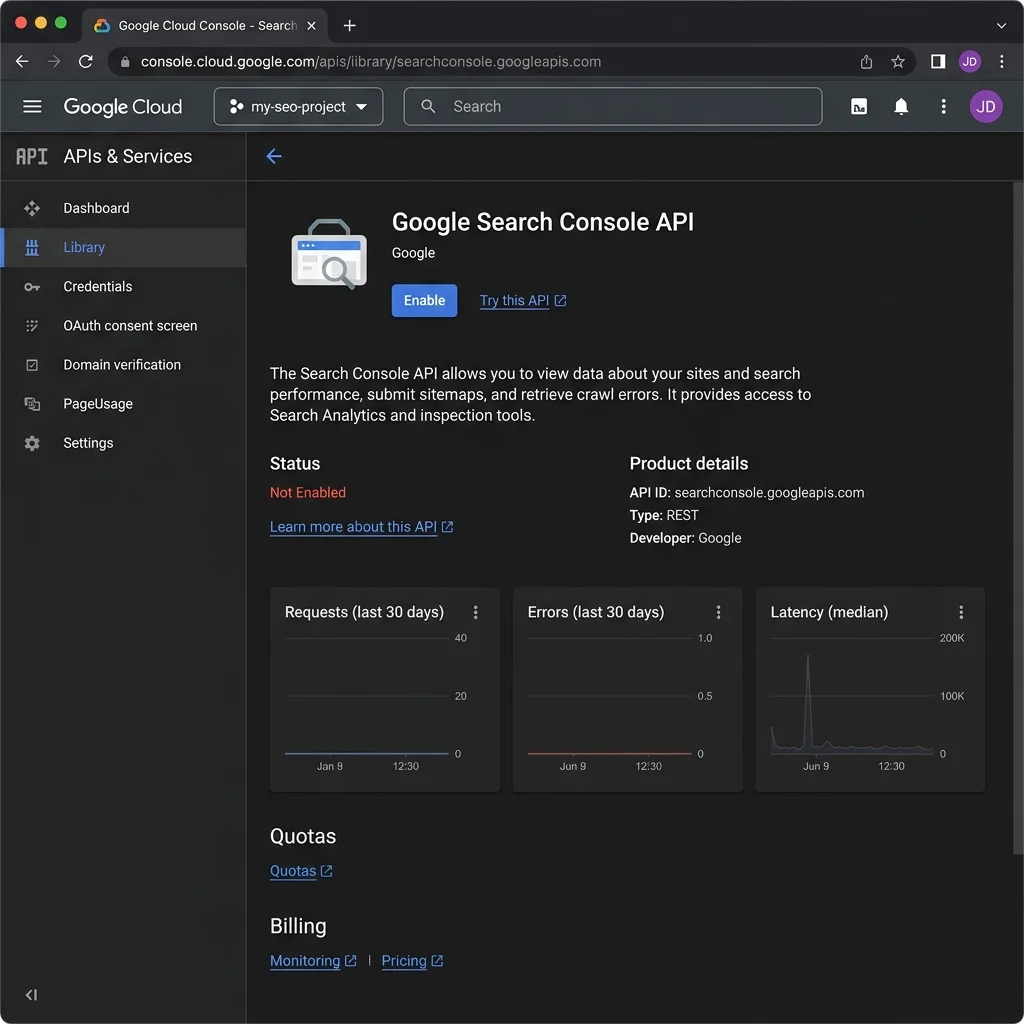
Step 2: Enable the Search Console API
- Navigate to the APIs & Services dashboard in your GCP project.
- Click Enable APIs and Services.
- Search for "Google Search Console API" (internally listed as the Webmaster Tools API).
- Click on the API in the results and click Enable.
Step 3: Choose an Authentication Method
The API supports two authentication flows:API Permissions Comparison
| Authentication Method | Protocol | Implementation Scope | Primary Use Case |
|---|---|---|---|
| OAuth 2.0 Client Credentials | User consent flow | Requires initial browser redirect to log in | Personal scripts, desktop applications, user-facing tools |
| Service Account Credentials | Server-to-server auth | Uses a private JSON key file without manual login | Server-side cron jobs, automated databases, backend scripts |
5. Configuring a Service Account
To configure server-to-server authentication:
- In the Google Cloud Console, navigate to IAM & Admin > Service Accounts.
- Click Create Service Account.
- Enter a name (e.g.,
gsc-reporting-bot) and click Create and Continue. - Skip the optional role assignments and click Done.
- Select your new Service Account from the list, open the Keys tab, click Add Key > Create New Key, and select JSON.
- Download the generated private key file and save it securely in your project directory as
credentials.json. Keep this file confidential, as it grants access to your search data.
// Example format of a Google Cloud Service Account credentials.json key file
{
  "type": "service_account",
  "project_id": "techseo-analytics-pipeline",
  "private_key_id": "abc123xyz456...",
  "private_key": "-----BEGIN PRIVATE KEY-----\nMIIEvgIBADANBgkqhkiG9w0BAQEFAASCBKgwggSkAgEAAoIBAQDh...\n-----END PRIVATE KEY-----\n",
  "client_email": "gsc-reporting-bot@techseo-analytics-pipeline.iam.gserviceaccount.com"
}- Copy the
client_emailaddress from the JSON file. - Open your Google Search Console dashboard, select your verified property, go to Settings > Users and Permissions, click Add User, paste the Service Account email address, and select Full or Owner permission.
6. API Dimensions Reference
When querying search analytics, you must define the dimensions you want to retrieve. The API returns aggregated metrics based on your selections:
| Dimension | Description | API Parameter Value | Example Output |
|---|---|---|---|
| Query | The search term searched by users | query | "technical seo audit guide" |
| Page | The final landing page URL | page | https://www.seotech.app/blog/nextjs-seo-best-practices |
| Country | Three-letter country code | country | usa, gbr, deu |
| Device | User device category | device | DESKTOP, MOBILE, TABLET |
| Search Appearance | Search result visual type | searchAppearance | AMP_BLUE_LINK, RICHTEXT |
| Date | Date of search interaction | date | 2026-06-18 |
7. Common SEO Reports Table
By combining different dimensions, you can build specific reports to address different SEO needs:
| Report Name | Dimensions Used | Target Metric Focus | Target Business Outcome |
|---|---|---|---|
| CTR Optimization Report | query, page | Impressions vs CTR | Find high-volume queries with low click-through rates |
| Ranking Decay Report | date, page | Average Position change | Flag older pages losing position over time |
| Device Mobile Parity | device, page | CTR and Position | Highlight pages underperforming on mobile layouts |
| Brand vs Non-Brand | query | Brand vs non-brand clicks | Track organic brand share vs generic search volume |
8. Node.js Example
To query the API using Node.js, install the official Google APIs client library:
npm install googleapisCreate a script named gsc-export.js. This script loads the Service Account credentials, queries the performance data for a specified date range, and logs the results:
// gsc-export.js
const { google } = require('googleapis');
const path = require('path');
const fs = require('fs');

// Path to your downloaded service account JSON key file
const KEY_FILE = path.join(__dirname, 'credentials.json');
const PROPERTY_URL = 'sc-domain:seotech.app'; // Use 'sc-domain:' prefix for domain properties

async function main() {
  try {
    // Authenticate with Google API using the JSON credentials key
    const auth = new google.auth.GoogleAuth({
      keyFile: KEY_FILE,
      scopes: ['https://www.googleapis.com/auth/webmasters.readonly'],
    });

    const client = await auth.getClient();
    const searchConsole = google.webmasters({
      version: 'v3',
      auth: client,
    });

    console.log('Successfully authenticated. Querying GSC API...');

    // Define the query request payload
    const response = await searchConsole.searchanalytics.query({
      siteUrl: PROPERTY_URL,
      requestBody: {
        startDate: '2026-05-01',
        endDate: '2026-05-31',
        dimensions: ['page', 'query'],
        rowLimit: 100, // Query limit up to 50,000 rows
      },
    });

    const rows = response.data.rows;
    if (!rows || rows.length === 0) {
      console.log('No data found for the specified period.');
      return;
    }

    console.log(`Retrieved ${rows.length} rows of search performance data.`);

    // Format and export results to console
    const formattedData = rows.map((row, index) => ({
      index: index + 1,
      page: row.keys[0],
      query: row.keys[1],
      clicks: row.clicks,
      impressions: row.impressions,
      ctr: (row.ctr * 100).toFixed(2) + '%',
      position: row.position.toFixed(1),
    }));

    console.table(formattedData.slice(0, 10)); // Display the top 10 rows

    // Save full results to a JSON file
    fs.writeFileSync('gsc-results.json', JSON.stringify(formattedData, null, 2));
    console.log('Saved all retrieved search data to gsc-results.json');

  } catch (error) {
    console.error('Error querying Google Search Console API:', error.message);
  }
}

main();
9. Python Example
For data analysis and automation workflows, Python is the preferred language. Install the Google API Client library:
pip install google-api-python-client google-auth-httplib2 google-auth-oauthlib pandasCreate a script named gsc_export.py. This script connects to the Search Console API, fetches search analytics data, and exports it directly to a CSV file using Pandas:
# gsc_export.py
import os
import pandas as pd
from google.oauth2 import service_account
from googleapiclient.discovery import build

# Configuration variables
CREDENTIALS_FILE = 'credentials.json'
PROPERTY_URL = 'sc-domain:seotech.app'  # Use sc-domain: for domain properties

def get_gsc_service(credentials_path):
    """Authenticate and build the Google Search Console API service."""
    scopes = ['https://www.googleapis.com/auth/webmasters.readonly']

    creds = service_account.Credentials.from_service_account_file(
        credentials_path,
        scopes=scopes
    )
    # Build search console service connection
    service = build('webmasters', 'v3', credentials=creds)
    return service

def fetch_search_analytics(service, property_url, start_date, end_date):
    """Query search performance data from GSC API."""
    request_body = {
        'startDate': start_date,
        'endDate': end_date,
        'dimensions': ['page', 'query'],
        'rowLimit': 500  # Expand to 50000 for full automation exports
    }

    response = service.searchanalytics().query(
        siteUrl=property_url,
        body=request_body
    ).execute()

    return response.get('rows', [])

def main():
    if not os.path.exists(CREDENTIALS_FILE):
        print(f"Error: {CREDENTIALS_FILE} not found. Save your service account key file in this directory.")
        return

    print("Authenticating with Google Cloud...")
    service = get_gsc_service(CREDENTIALS_FILE)

    start_date = '2026-05-01'
    end_date = '2026-05-31'

    print(f"Querying data from {start_date} to {end_date} for {PROPERTY_URL}...")
    data_rows = fetch_search_analytics(service, PROPERTY_URL, start_date, end_date)

    if not data_rows:
        print("No search performance data returned from GSC.")
        return

    # Process GSC response keys and metrics
    processed_records = []
    for row in data_rows:
        processed_records.append({
            'page': row['keys'][0],
            'query': row['keys'][1],
            'clicks': row['clicks'],
            'impressions': row['impressions'],
            'ctr': row['ctr'],
            'average_position': row['position']
        })

    # Convert list of dicts to Pandas DataFrame
    df = pd.DataFrame(processed_records)

    # Calculate percentage CTR for readability
    df['ctr_percentage'] = (df['ctr'] * 100).round(2)

    # Sort by clicks descending
    df = df.sort_values(by='clicks', ascending=False)

    print("\nTop 5 landing page queries by clicks:")
    print(df[['page', 'query', 'clicks', 'impressions', 'ctr_percentage', 'average_position']].head(5))

    # Export data to local CSV file
    output_filename = 'gsc_search_performance.csv'
    df.to_csv(output_filename, index=False)
    print(f"\nSuccessfully exported data to {output_filename}")

if __name__ == '__main__':
    main()
10. Finding Content Opportunities Using API Data
Automating GSC data retrieval allows you to run algorithms that analyze performance data at scale. Here are three workflows for identifying content opportunities:
Workflow 1: Detecting Low CTR Pages (Title & Meta Tuning)
Filter for pages with high impressions but low CTRs that are ranking in positions 1 to 5. This setup suggests the content is ranking well, but users are choosing other options in the SERPs.CTR Opportunity Table
| Landing Page URL | Target Keyword | Impressions | Clicks | CTR | Avg. Position | Opportunity Action |
|---|---|---|---|---|---|---|
/blog/technical-seo-audit-checklist | "seo checklist" | 45,000 | 900 | 2.0% | 4.2 | Rewrite Title & Meta description to improve CTR |
/blog/google-analytics-4-guide | "ga4 guide for seo" | 12,000 | 180 | 1.5% | 3.5 | Add structured data FAQ schema for rich snippets |
/blog/complete-guide-to-core-web-vitals-2026 | "core web vitals" | 30,000 | 450 | 1.5% | 5.1 | Highlight checklist table in page overview |
Workflow 2: Detecting Declining Rankings (Content Decay)
By comparing current data (e.g., the last 30 days) with historical data (e.g., the preceding 30-day window or the same period last year), you can calculate position changes to flag rankings that are decaying:$$\text{Position Delta} = \text{Current Position} - \text{Baseline Position}$$
A positive delta indicates rankings are declining (moving down the SERPs), signaling that the page needs updates or a content refresh.
Ranking Opportunity Table
| Page URL | Legacy Avg Position | Current Avg Position | Delta (Change) | Traffic Impact | Recovery Action |
|---|---|---|---|---|---|
/blog/how-to-use-ai-for-seo-content-writing | 3.1 | 7.9 | -4.8 | -45% clicks | Refresh page content, add expert author quotes |
/blog/data-driven-content-optimization | 4.5 | 8.8 | -4.3 | -30% clicks | Revise internal link anchors, update stale data points |
/blog/nextjs-seo-best-practices | 2.2 | 4.8 | -2.6 | -20% clicks | Check Core Web Vitals shift, optimize CSS/bundles |
Workflow 3: Finding Keyword Gaps
Query the API for non-branded terms that rank in positions 11 to 20 (on page 2 of search results). These URLs are close to entering page 1. Often, adding internal links or expanding the content to cover subtopics can help push these pages onto page 1.11. Creating SEO Dashboards
You can use the API data to build automated dashboards in tools like Looker Studio or custom internal interfaces. Use the following metrics:
SEO Dashboard Metrics Table
| Dashboard KPI | Primary Source Data | Extraction Query Grouping | Visual Representation | Target Threshold |
|---|---|---|---|---|
| Total Organic Clicks | GSC API clicks | Grouped by Date | Sparkline chart | Positive MoM growth |
| CTR by Keyword Category | GSC API query, ctr | Filtered via brand vs non-brand | Bar chart comparison | Brand > 20%, Generic > 2% |
| Indexing Error Volume | GSC API URL Inspection | Grouped by error category | Area stack chart | Zero critical errors |
| Core Web Vitals Pass Rate | CrUX API / Lighthouse | Grouped by Page template | Gauge charts | > 90% pages passing (Green) |
12. Common API Errors and Troubleshooting
When working with the Search Console API, you may run into these common errors:
Error 403: Forbidden (User does not have property access)
This occurs if the Service Account email address has not been added as a user in the Google Search Console property interface. To fix this, go to GSC Settings > Users, add the Service Account email address, and grant it Full or Owner permission.Error 429: Too Many Requests (Rate limit exceeded)
This indicates you have exceeded your query quota. Implement exponential backoff in your code to wait and retry the request when encountering rate limits. You can also request a quota increase in the Google Cloud Console.Error 400: Bad Request (Invalid date or dimensions)
Ensure your date parameters use theYYYY-MM-DD format. Also, check that you do not select more than five dimensions in a single query.
13. Best Practices for SEO Automation
- →Handle Pagination: The default query response limit is 1,000 rows. To fetch larger datasets, use the
startRowparameter to paginate through results. - →Cache Your Data: GSC API performance metrics can lag by 2 to 3 days. Cache historical data locally to avoid making redundant API calls and hitting rate limits.
- →Isolate Brand Traffic: Filter out branded keywords (e.g., searches containing your brand name) to measure the performance of your informational and organic search content accurately.
- →Automate Inspections: Set up scripts to inspect high-priority URLs weekly using the URL Inspection API, alerting your team if indexing errors are detected.
14. References
Advertisement
Frequently Asked Questions
What is the row limit of the Google Search Console API?
The GSC API allows exporting up to 50,000 rows of data per API query, which is 50 times greater than the 1,000-row limit enforced in the standard Search Console browser user interface.
Is the Google Search Console API free to use?
Yes, the Search Console API is completely free of charge. However, it is subject to query rate limits (default quota limits are 1,200,000 queries per day per project, and 1,200 queries per minute per user).
Can I fetch Google Search Console data via a Service Account?
Yes, you can use a Google Cloud Platform Service Account. You download the credentials JSON file, configure the SDK, and grant access by adding the Service Account email address as a user in the Google Search Console property interface.

Technical SEO Specialist & Web Performance Engineer
Daniel Ashcroft is a Technical SEO Specialist with 9+ years of experience optimizing enterprise web applications for search performance. He specializes in Next.js architecture, Core Web Vitals, and technical SEO implementations that bridge development and marketing. He has led SEO migrations for Fortune 500 companies, managed crawl optimization for million-page sites, and built automated auditing tools used by agencies worldwide. Daniel has helped clients achieve 40%+ organic traffic improvements through JavaScript SEO, server-side rendering, and performance optimization. He is a regular speaker at BrightonSEO, SMX, and SearchLove, contributing to publications including Search Engine Land and Moz Blog. Daniel is committed to making the web faster, more accessible, and more discoverable through technical excellence.
Stay Updated
Get the latest articles and SEO insights delivered to your inbox.
No spam. Unsubscribe anytime.



Advertisement