Core Web Vitals Debugging Playbook: Diagnose and Fix LCP, INP, and CLS Issues
Stop guessing why your Core Web Vitals are failing. Learn a systematic debugging workflow for LCP, INP, and CLS issues with real diagnostic techniques, CrUX analysis, and framework-specific fixes.

Advertisement
Key Takeaways
- Always debug using field data from CrUX, not lab data from Lighthouse alone. The two measure different things and often disagree.
- LCP debugging follows a four-step path: identify the element, trace the loading path, eliminate render-blocking resources, and optimize the image itself.
- INP measures every interaction, not just the first one. The root cause is almost always main thread blocking from JavaScript execution.
- CLS is usually caused by missing image dimensions, unreserved ad space, or improper font loading. These are the easiest fixes with the highest impact.
- In Next.js, Server Components are your best tool for performance. The less JavaScript you send to the browser, the better your INP and LCP will be.
- Set up continuous monitoring with the web-vitals library and synthetic testing in CI. Debugging after Search Console turns red is too late.
- Focus fixes in this order: CLS first, LCP image optimization second, server response time third, INP JavaScript optimization last.
You have seen the red "Poor" labels in Google Search Console. Your Lighthouse score drops every sprint. And no one on the team can agree on whether the problem is images, JavaScript, or the CDN.
Core Web Vitals debugging is hard because the tools lie. Well, they do not lie exactly, but they tell different versions of the truth. Lighthouse gives you a lab score from a clean environment. Search Console shows field data from real users on unstable connections and budget phones. They rarely match.
I have spent the last three years working on Next.js performance at scale. I have seen an LCP of 8 seconds drop to 1.8 seconds because someone removed a single lazy-load attribute. I have watched INP go from 450 milliseconds to 120 milliseconds by restructuring one event handler. None of these fixes came from chasing a 100 Lighthouse score. They came from understanding what the metrics actually measure and building a repeatable debugging workflow.
This playbook is that workflow. It is not a rehash of what Core Web Vitals are. For the fundamentals, read our Complete Guide to Core Web Vitals in 2026. This is the practical companion. You will learn exactly how to diagnose each metric, what tools to use for each scenario, and how to fix issues in production Next.js applications.
The Debugging Mindset: Field Data First
The single most important rule in Core Web Vitals debugging: never optimize based on lab data alone. Lab data runs on your machine under ideal conditions. Field data comes from real Chrome users through the Chrome User Experience Report. Google ranks on field data at the 75th percentile.
Here is what happens when you ignore this rule. A developer runs Lighthouse on a MacBook Pro with a fiber connection. The page scores 98. They ship it. Real users on mid-range Android phones with 4G connections see LCP above 4 seconds. The Search Console report turns red. The developer reruns Lighthouse on their MacBook and sees the same 98. They conclude Search Console is wrong.
Search Console is not wrong. The Lighthouse environment is not wrong either. They are measuring different things. Lighthouse is a controlled lab test. CrUX is a field study of every real visit to your page.
Start every debugging session by checking two sources:
Google Search Console Core Web Vitals report shows URL groups that fail each metric. It tells you which pages to prioritize. Open the report. Look for patterns: do all article pages fail LCP? Do product pages fail CLS? The pattern points to the root cause.
PageSpeed Insights shows both lab and field data for a single URL. Scroll to the Diagnostics section. If the field data shows poor LCP but lab data shows good LCP, the problem is network-related rather than code-related. If both show poor LCP, the problem is in your HTML or server configuration.
Debugging LCP: Find What Is Blocking the Render
Largest Contentful Paint measures when the largest visible element finishes rendering. In most content sites, that element is the hero image or a large heading. In a blog post, it is usually the featured image. In a product page, it is the first product photo.
Step One: Identify the LCP Element
Open Chrome DevTools. Go to the Performance panel. Click the reload button in the DevTools toolbar. After the page loads, look for the LCP marker in the timeline. It will show you exactly which element was the LCP candidate and when it rendered.
You can also use the Web Vitals Chrome extension. It displays the current LCP element and timing in the toolbar as you browse. This is faster than the Performance panel for quick checks.
Write down the LCP element. This is your target.
Step Two: Trace the Loading Path
Every LCP element has a loading path. For images, the path is: discover the image tag, resolve the URL, negotiate the connection, download the bytes, decode the image, paint it to the screen. A delay at any step pushes LCP past 2.5 seconds.
Open the Network panel. Filter by the LCP image URL. Check these values:
TTFB should be under 200 milliseconds. If it is higher, the server is slow. The fix is usually server-side caching or moving to a CDN that edge-caches HTML.
Resource load delay is the time between the request starting and the first byte arriving. If this is high, the image might be competing with other resources. The browser can only download so many resources at once from the same origin.
Step Three: Check for Render-Blocking
The browser cannot render the LCP element until it finishes parsing the CSS and any blocking JavaScript. Look at the Coverage tab in DevTools. It shows how much of your CSS and JavaScript is unused on the initial load.
If you see large unused CSS, you have two options: inline critical CSS for above-the-fold content and defer the rest, or use code splitting to load only the CSS needed for the current route.
If you see render-blocking JavaScript, add defer or async attributes to script tags that are not needed for the initial render. Third-party analytics scripts, chat widgets, and social media embeds are common culprits.
Step Four: Examine the Image Itself
The LCP image should never be lazy-loaded. Search your codebase for loading=lazy on your hero or featured images. If it exists, remove it. The LCP image needs loading=eager with fetchpriority=high.
Check the image format. WebP and AVIF compress significantly better than JPEG or PNG. A hero image that is 500 KB as JPEG can be 80 KB as WebP with no visible quality loss. Use the Squoosh app or your build pipeline to convert images.
Check the image dimensions. Responsive images with srcset and sizes attributes ensure the browser downloads only what it needs for the current viewport. A desktop visitor should not download a 2000 pixel wide image on a 400 pixel wide phone screen.
Here is the ideal LCP image setup for Next.js:
<Image
  src="/hero.webp"
  alt="Hero section"
  width={1200}
  height={600}
  priority
  sizes="(max-width: 768px) 100vw, 1200px"
  quality={85}
/>
The priority prop tells Next.js to generate a preload link and set fetchpriority=high. The sizes attribute helps the browser pick the right source. The quality of 85 balances visual fidelity against file size.
Real-World LCP Debugging Example
A client site had LCP of 5.2 seconds on mobile. The Search Console report flagged all article pages. The LCP element was the featured image. Following the steps above revealed:
TTFB was 1.1 seconds because the server was rendering pages on every request with no caching layer. Fix: added ISR with a revalidation period of 60 seconds.
The image was a 2 MB JPEG with 3000 pixel width and no responsive sources. Fix: converted to WebP, generated three sizes, and served the appropriate source via srcset.
The image had loading=lazy because a developer had applied a blanket lazy-load rule to all images. Fix: removed lazy-load from the featured image.
The image was behind a CSS background-image property on a div instead of an img element. Fix: moved the hero image to a proper img tag with dimensions.
After these fixes, LCP dropped to 1.8 seconds. The Search Console report turned green within three weeks.
Debugging INP: The Interaction Latency Puzzle
INP replaced First Input Delay in March 2024. FID only measured the first interaction. INP measures every click, tap, and keyboard interaction throughout the session and reports the worst one. This is a significantly stricter metric.
The main cause of poor INP is JavaScript execution on the main thread. When the browser is busy parsing, compiling, or executing JavaScript, it cannot respond to user input. The page looks loaded but feels sluggish.
Step One: Check Total Blocking Time
INP correlates strongly with Total Blocking Time. Open PageSpeed Insights and look at the TBT value in the lab data section. If TBT is above 200 milliseconds, your INP is likely poor in the field.
TBT measures the sum of all long tasks on the main thread that block user input. A long task is any JavaScript execution that takes more than 50 milliseconds.
Step Two: Identify Long Tasks
Chrome DevTools now has a Long Tasks view in the Performance panel. Record a typical user session and look for red bars in the top timeline. Each red bar is a long task. Click on it to see what caused it.
Common culprits include:
Third-party scripts that execute synchronous work. Google Tag Manager, Facebook Pixel, and ad networks are frequent offenders. Load them with the Partytown library or defer them until after the page is interactive.
Framework hydration. Next.js sends JavaScript to the browser for client components. The browser must execute this JavaScript to make those components interactive. Too much client JavaScript means long hydration times.
Inefficient event handlers. A click handler that does heavy DOM manipulation, triggers reflows, or makes synchronous network requests blocks the main thread.
Step Three: Profile Specific Interactions
The Interactions panel in DevTools shows detailed information about every user interaction and how long it took the browser to respond. Open DevTools, go to Performance, and enable the web vital tracking. Interact with your page. The panel will show you the event processing time, rendering time, and painting time for each interaction.
If the processing time is high, the event handler is doing too much work. Consider debouncing, throttling, or moving work off the main thread with a Web Worker.
If the rendering time is high, the interaction triggers expensive layout or style recalculations. This often happens when an interaction changes many DOM elements at once.
Step Four: Optimize Client Components in Next.js
In Next.js, every component marked with use client sends JavaScript to the browser. Audit your components. Move everything that can be server-rendered to Server Components. Only mark components as client when they need interactivity.
Here is the pattern I use:
// Server Component by default - no use client needed
async function ArticlePage() {
const article = await getArticle()
return (
The ArticlePage is a Server Component. It fetches data and renders HTML on the server. No JavaScript is sent to the browser for this component. Only the client components nested inside (like a comment form) ship JavaScript.
Real-World INP Debugging Example
A SaaS dashboard had INP of 650 milliseconds on the 75th percentile. The worst interaction was clicking a filter dropdown.
Profiling showed that the dropdown component was wrapped in a client component that imported a heavy charting library. The entire charting library was being downloaded and parsed before the dropdown could respond.
The fix was straightforward: dynamic import the charting library with next/dynamic and ssr: false. The filter dropdown became a lightweight client component that loaded instantly. The chart loaded separately without blocking interactions.
INP dropped to 180 milliseconds.
Debugging CLS: Finding the Shifts
Cumulative Layout Shift measures unexpected movement of visible elements. A shift happens when an element loads after content has already been rendered and pushes existing content to a new position.
The classic example: an ad loads above the article text after the text is already visible. The text jumps down. The reader loses their place. This is a layout shift.
Step One: Record a Page Load
Open DevTools. Right-click the reload button and select Reload with empty cache and hard refresh. Watch the page load. Look for elements that move after they first appear.
The Rendering tab has a Layout Shift Regions option. Enable it. It will flash blue rectangles every time a layout shift occurs during page load.
Step Two: Check for Missing Dimensions
The most common cause of CLS is images and embeds without explicit width and height attributes. When the browser reserves no space for an image, it renders zero pixels by zero pixels. When the image loads, the browser allocates space, and everything below it shifts.
Every img element should have width and height attributes set. In Next.js, the Image component does this automatically. For custom images, always include dimensions:
<img
  src="/photo.webp"
  alt="Description"
  width="800"
  height="600"
  loading="lazy"
/>
The width and height tell the browser the aspect ratio. It can calculate the required space before the image downloads.
Step Three: Reserve Space for Dynamic Content
Ads, embeds, and dynamically injected content must have reserved space. If an ad loads at 300 by 250 pixels, reserve that space in your CSS:
.ad-slot {
  width: 300px;
  height: 250px;
  min-height: 250px;
}
If the ad fails to load, the min-height keeps the reserved space. Without it, the space collapses and content below shifts.
Step Four: Handle Web Fonts Correctly
Custom fonts cause two CLS problems. First, the browser renders text in a fallback font, then swaps to the custom font when it loads. If the fonts have different metrics, the text reflows. Second, font loading delays the first paint, which can push other content rendering later.
Use font-display: swap in your @font-face declaration. This tells the browser to render text immediately with a fallback font. The custom font loads in the background and swaps in when ready.
To minimize the layout impact, use font-size-adjust to match the fallback font metrics to your custom font. This reduces the reflow when the font swap happens.
Next.js handles this well with the next/font module. It automatically applies font-display: swap and generates the correct size-adjust values:
import { Inter, Roboto_Mono } from 'next/font/google'
const inter = Inter({ subsets: ['latin'], display: 'swap', adjustFontFallback: true, })
const robotoMono = Roboto_Mono({ subsets: ['latin'], display: 'swap', })
These APIs handle the CLS prevention automatically. Use them instead of importing fonts from external sources.
Setting Up Continuous Monitoring
Debugging is not a one-time activity. New features, content updates, and third-party script changes can introduce regressions at any time. You need continuous monitoring to catch problems before they appear in Search Console.
Set up Real User Monitoring using the web-vitals library from Google. It is a tiny JavaScript library that captures LCP, INP, and CLS from real users and reports them to your analytics platform:
import { onLCP, onINP, onCLS } from 'web-vitals'
function sendToAnalytics(metric) { const body = JSON.stringify(metric) navigator.sendBeacon('/analytics', body) }
onLCP(sendToAnalytics) onINP(sendToAnalytics) onCLS(sendToAnalytics)
Send these metrics to your analytics platform. Track them over time. Set up alerts when the 75th percentile exceeds the good threshold.
For synthetic monitoring, run Lighthouse as part of your CI pipeline. Every pull request should generate a performance report. Block merges that introduce regressions in LCP, INP, or CLS.
The Optimization Priority Order
Not all fixes are equal. Here is the order I recommend based on impact versus effort:
CLS fixes are usually the easiest. Add width and height to images, reserve space for ads, and configure font-display. These changes take minutes and often turn CLS from poor to good immediately.
Image optimization for LCP gives high returns. Convert to WebP, add responsive sources, set fetchpriority=high, and never lazy-load the hero image. This can cut LCP by 40 to 60 percent.
Server response time optimization requires more effort. Use ISR or full-page caching in Next.js. Move your site behind a CDN that caches HTML at the edge. This improves TTFB, which directly improves LCP.
JavaScript optimization for INP is the most complex. It requires auditing component boundaries, analyzing bundle sizes, and restructuring client code. But the results are dramatic. Cutting INP from 400 to 150 milliseconds transforms how your site feels.
Core Web Vitals Target Thresholds
| Metric | Good | Needs Improvement | Poor |
|---|---|---|---|
| Largest Contentful Paint (LCP) | ≤ 2.5s | 2.5s - 4.0s | > 4.0s |
| Interaction to Next Paint (INP) | ≤ 200ms | 200ms - 500ms | > 500ms |
| Cumulative Layout Shift (CLS) | ≤ 0.1 | 0.1 - 0.25 | > 0.25 |
Common Mistakes
- →Blocking JavaScript & CSS in robots.txt: Googlebot needs to render layout styles to calculate Core Web Vitals like CLS and LCP accurately.
- →Not Preloading Critical Hero Images: Forgetting to preload the LCP image delays rendering, resulting in a poor Lighthouse speed score.
- →Ignoring Client-Side Render Latency: Relying entirely on client-side JS executing without an HTML backup blocks indexation on other search engines like Bing.
When This Does Not Apply
- →Static Marketing Pages: Simple, light static sites with minimal dynamic elements rarely need complex server-rendering, database connections, or API performance strategies.
- →Non-Indexed Portals: Staging sites, dashboard pages behind authentication, or internal company wikis do not benefit from structured data or search engine indexability optimization.
Official References
Advertisement
Frequently Asked Questions
Why do my Lighthouse scores not match Search Console data?
Lighthouse runs in a controlled lab environment on your device. Search Console uses field data from real Chrome users at the 75th percentile. They measure different conditions and will rarely match. Optimize for field data, not lab scores.
How long does it take for Core Web Vitals fixes to show in Search Console?
Search Console updates Core Web Vitals data based on the previous 28 days of Chrome user data. After you deploy a fix, wait approximately 28 days for the report to reflect the improvement. PageSpeed Insights field data updates faster, typically within a week.
What is the difference between INP and FID?
FID measured only the delay of the first user interaction. INP measures the latency of every click, tap, and keyboard interaction throughout the session and reports the worst one. INP is significantly stricter and more representative of real user experience.
Should I use dynamic imports for all large components in Next.js?
Only for components that are not needed immediately on the initial render. Dynamic imports with ssr: false prevent the component from being included in the initial bundle. Use them for charts, maps, heavy third-party widgets, and below-the-fold content.
Can CDNs fix Core Web Vitals on their own?
A CDN improves TTFB by serving content from edge locations closer to users. This helps LCP but does not fix render-blocking resources, image optimization, or JavaScript execution issues. A CDN is one part of the solution, not the complete fix.
What is the easiest Core Web Vital to fix?
CLS is usually the easiest. Adding width and height to images, reserving space for dynamic content, and using font-display: swap can resolve most CLS issues in under an hour. LCP requires more effort, and INP requires the most.
Does Google penalize sites with poor Core Web Vitals?
Core Web Vitals are a ranking signal within the page experience system. Google has stated that great page experience does not override great content, but when content quality is equal, the page with better Core Web Vitals may rank higher. The metrics also affect eligibility for features like Top Stories and Google Discover.

Full-Stack Developer & Web Architecture Engineer
Liam O'Brien is a Full-Stack Developer with 8+ years of experience building high-performance web applications. He specializes in Next.js, React, and Node.js, with a deep focus on web architecture, performance optimization, and technical SEO. Liam has architected front-end systems for e-commerce platforms handling 10 million+ monthly visitors and has contributed to major open-source projects including Next.js core and React documentation. He is passionate about server-side rendering, edge computing, and building scalable web applications that deliver exceptional user experiences. Liam writes about modern JavaScript frameworks, performance patterns, web vitals optimization, and building for search engine crawlers. He believes that great engineering and great SEO go hand in hand.
Comments are temporarily unavailable.
Stay Updated
Get the latest articles and SEO insights delivered to your inbox.
No spam. Unsubscribe anytime.
Related Articles
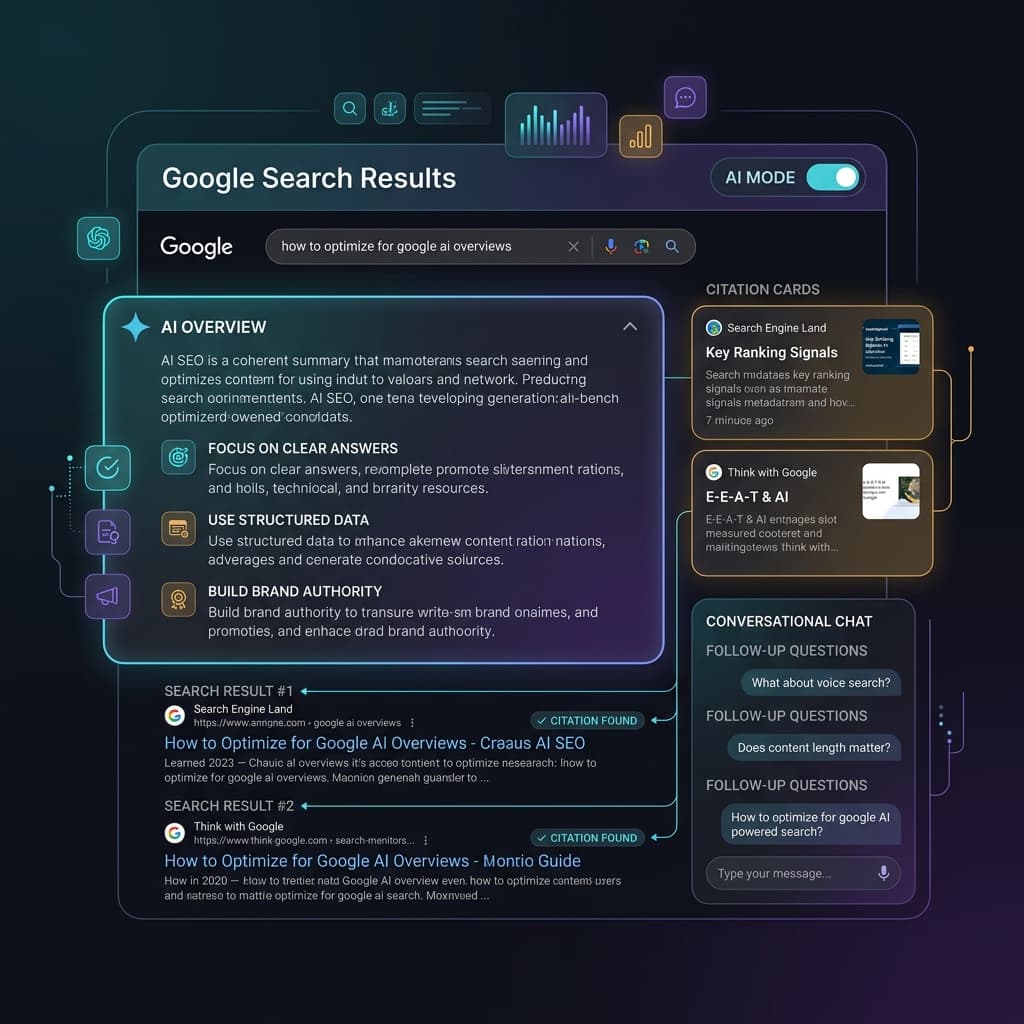
Google AI Overviews and AI Mode SEO: A Practical Visibility Framework (2026)
An in-depth guide to achieving high visibility in Google AI Overviews and AI Mode conversational search. Learn the RAG pipeline, key ranking factors, E-E-A-T requirements, and structured data optimization.

Internal Linking Strategy for SEO: A Complete Framework
Build an internal linking framework that distributes link equity, establishes content relationships, and drives rankings across your entire site.
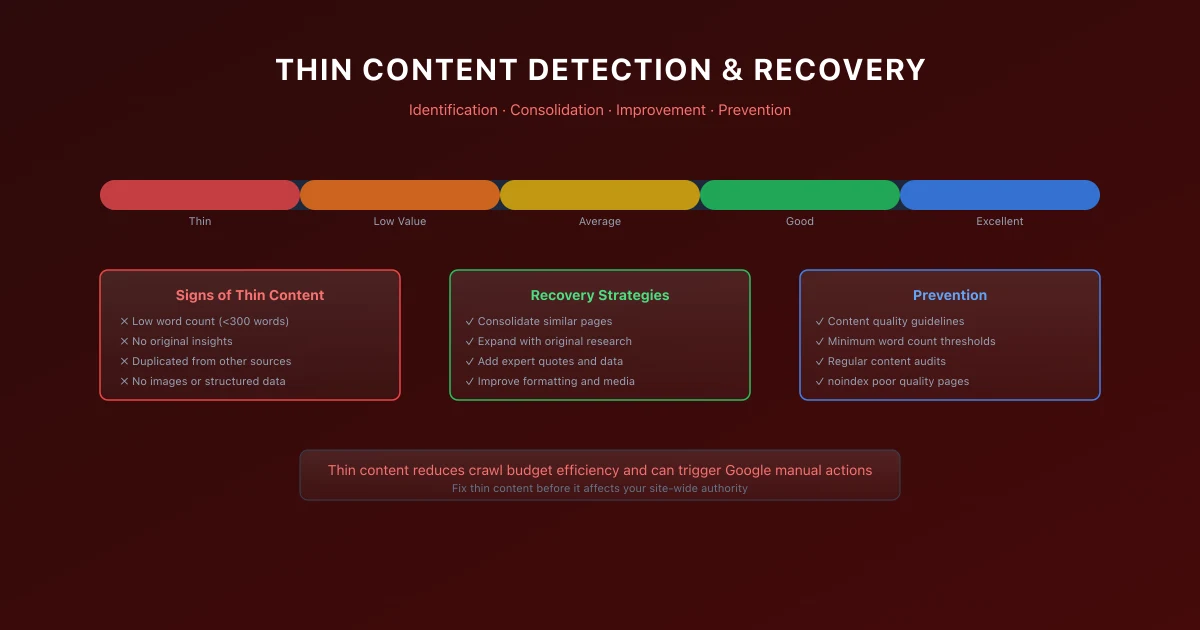
SEO for Thin Content: Detection, Recovery, and Prevention
Identify and fix thin content issues that harm your search rankings, with strategies for content consolidation, improvement, and prevention at scale.
Advertisement